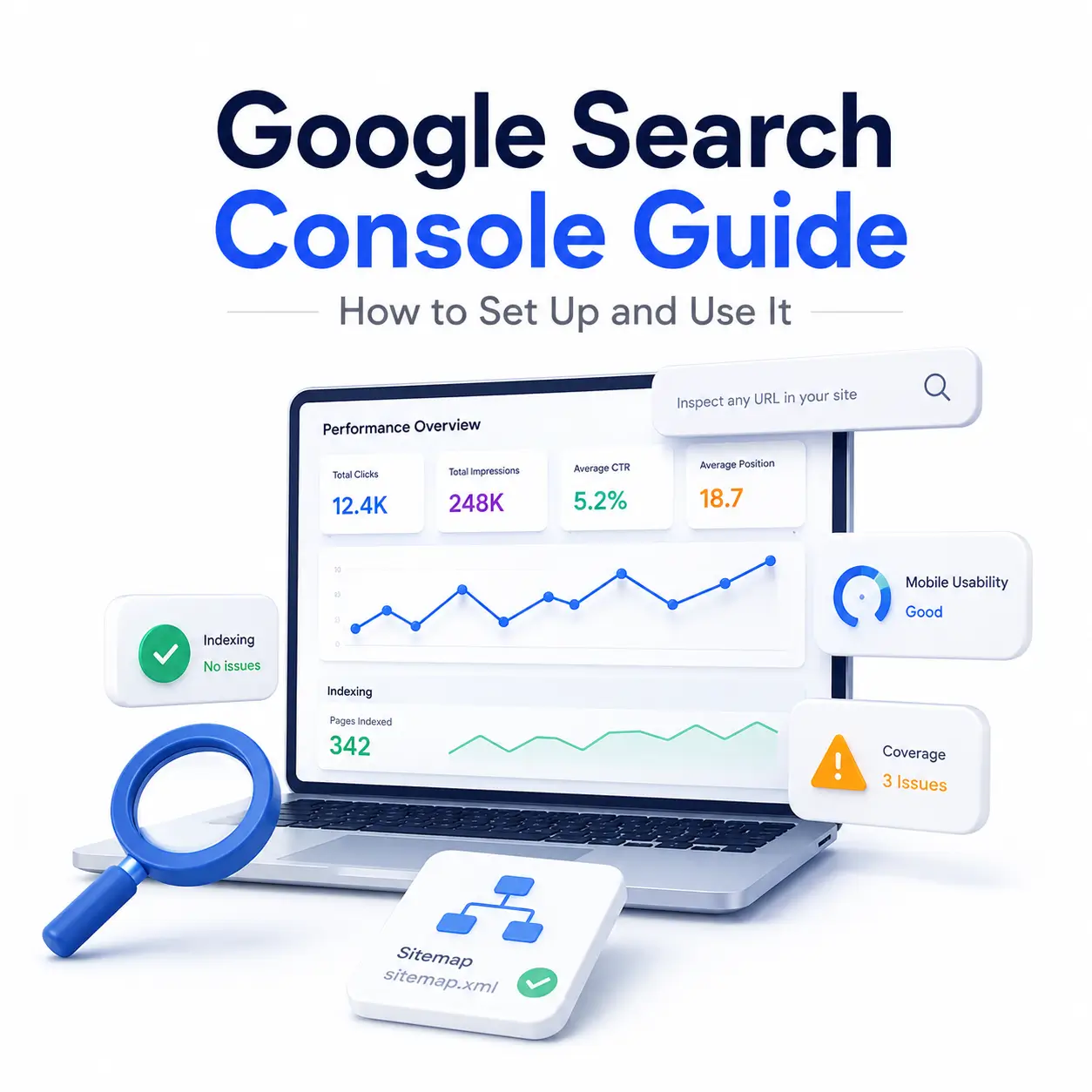
If you’ve ever published a page and wondered, “Does Google even know this exists?” Google Search Console is the tool that answers that question. It’s free, it’s built by Google itself, and it’s the single most useful dashboard for understanding how your site actually performs in search results.
This guide walks you through everything a beginner needs: what Google Search Console is, how to set it up, and how to read its most important reports without the jargon.
Google Search Console is an important part of a broader digital marketing strategy because it shows how people discover your website through Google. While it focuses mainly on organic search, the insights it provides can help improve your overall online marketing efforts.
What Is Google Search Console?
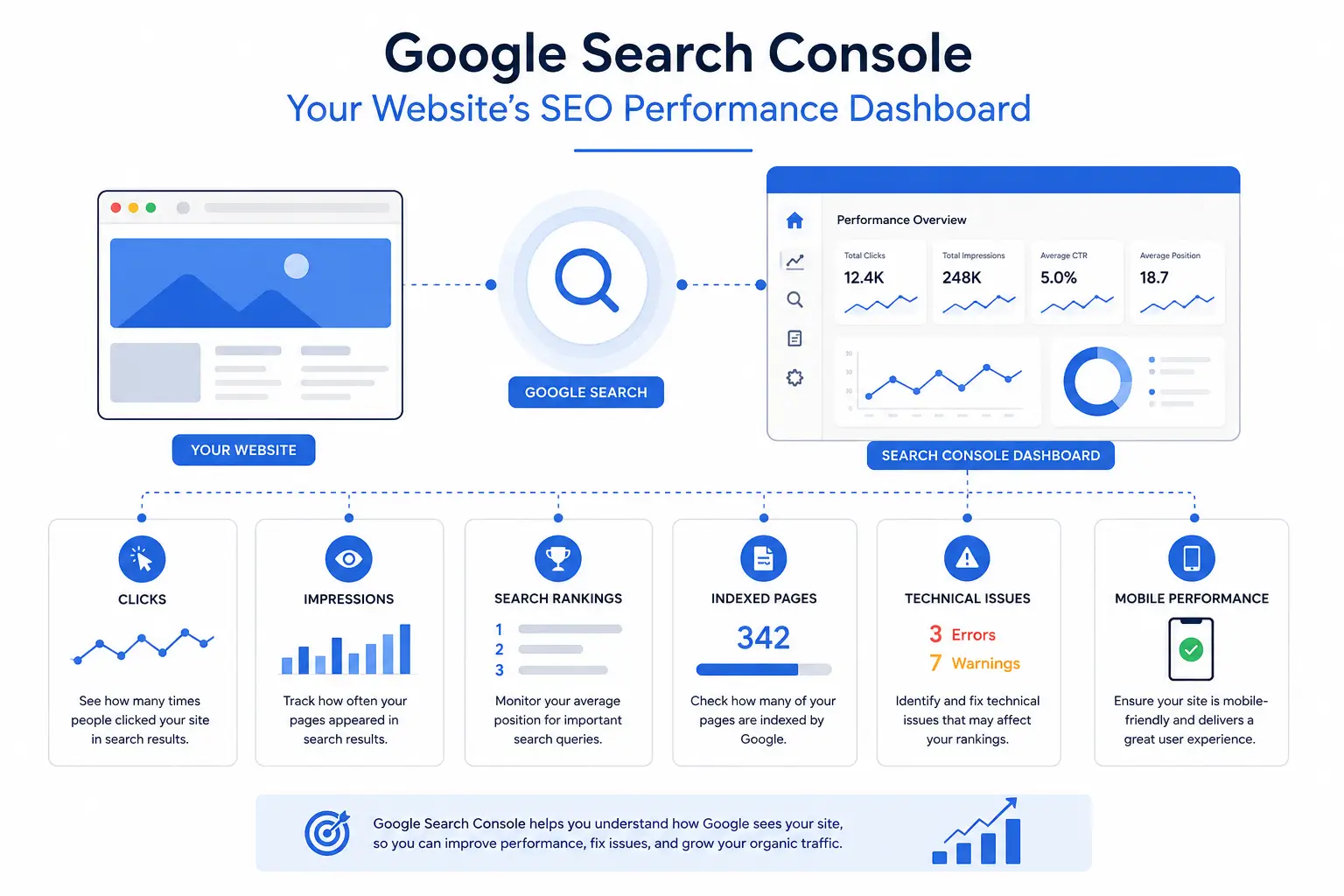
Google Search Console (formerly Google Webmaster Tools) is a free service that shows you how Google sees your website. It reports on which pages are indexed, which search queries bring people to your site, whether you have technical errors Google has run into, and how your site performs on mobile devices.
You don’t need to be an SEO expert to use it. If you own, manage, or write content for any website a blog, a small business site, an online store Search Console gives you direct visibility into your Google Search presence that you simply can’t get anywhere else, including in Google Analytics.
Google Search Console vs. Google Analytics
These two tools get confused constantly, so here’s the short version: Search Console shows what happens before someone lands on your site impressions, clicks, average ranking position, and indexing status in Google Search. Google Analytics shows what happens after someone arrives pages viewed, time on site, conversions, and behavior.
Neither tool replaces the other. Most site owners connect both, since Search Console tells you if you’re being found and Analytics tells you what happens once you are.
How to Set Up Google Search Console
Setup takes about five minutes and doesn’t require a developer for most sites.
Creating Your Account and Adding a Property
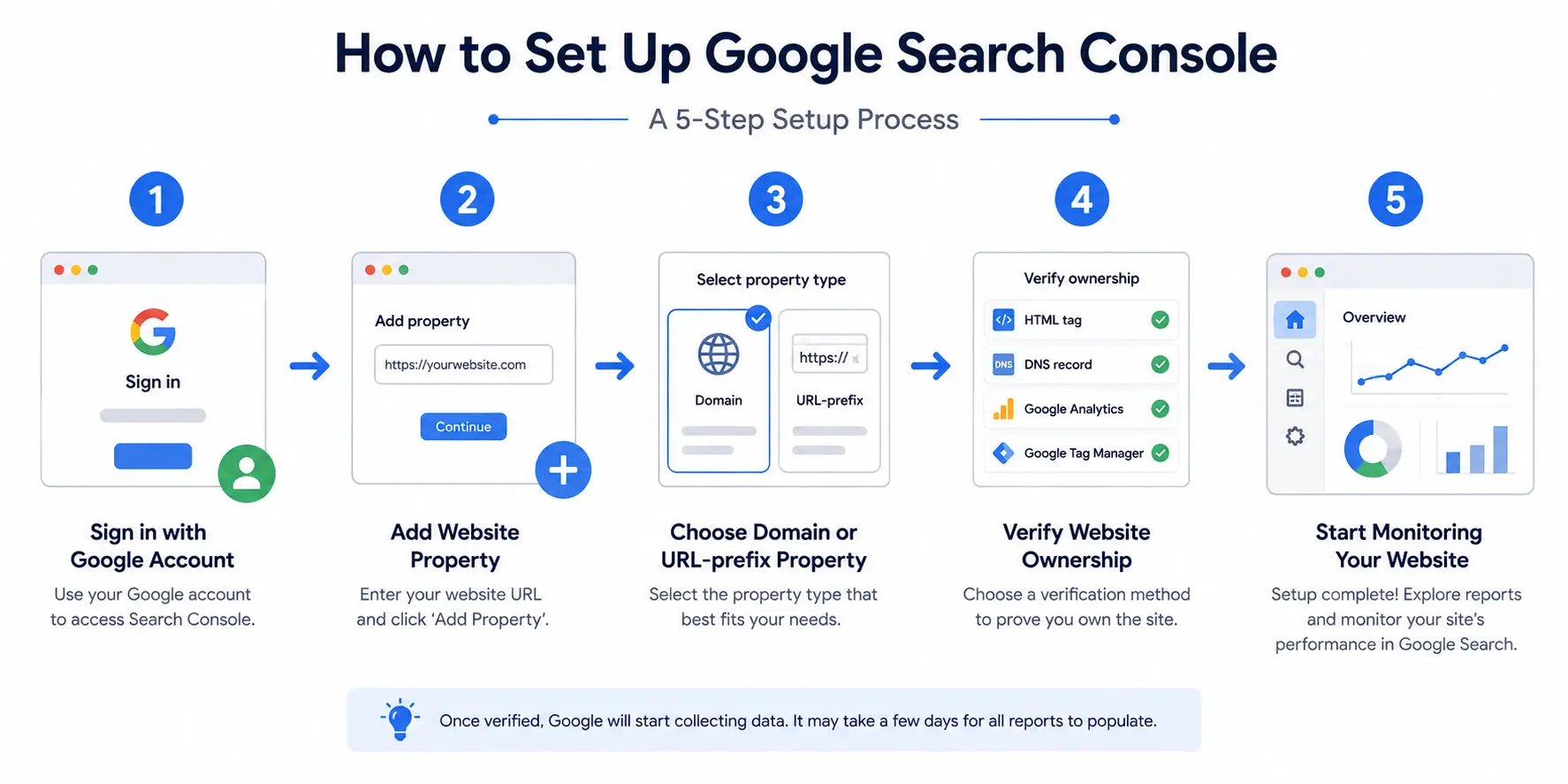
Go to the Search Console homepage and sign in with the Google account you want to manage the site with. Click “Add Property,” then enter your website. Google will ask you to choose between two property types more on that below.
Domain Property vs. URL-Prefix Property
- Domain property covers every version of your site http, https, www, non-www, and all subdomains under one property. This is the recommended option for most people because it gives you the full picture in one place.
- URL-prefix property covers only the exact URL you enter (for example, only https://www.yoursite.com, not http://yoursite.com). Choose this if you only have access to verify one specific version, or if your host doesn’t support the DNS verification that domain properties require.
If you’re unsure, start with a domain property it’s more comprehensive and avoids fragmented data later.
Verifying Ownership (HTML Tag, DNS, Google Analytics, etc.)
Google needs proof you actually own the site before showing you its data. Common verification methods include:
- HTML tag – paste a small code snippet into your site’s homepage <head> section, or into your SEO plugin (Yoast, Rank Math, etc.) if you’re on WordPress.
- DNS record – add a TXT record through your domain registrar. Required for domain properties.
- Google Analytics or Google Tag Manager – if you already have one of these installed with admin access, you can verify instantly with one click.
- HTML file upload – upload a file Google provides to your site’s root directory.
Once verified, Search Console starts collecting data immediately, though most reports take a few days to populate fully.
Submitting Your Sitemap
A sitemap is essentially a map of your site that tells Google which pages exist and how they’re organized. Submitting one helps Google discover new and updated content faster.
Finding Your Sitemap URL
If you use an SEO plugin like Yoast or Rank Math, a sitemap is generated automatically, usually at yoursite.com/sitemap.xml or yoursite.com/sitemap_index.xml. If you’re not sure, check your plugin’s settings or ask your developer.
Submitting It in Search Console
In the left-hand menu, click “Sitemaps,” paste your sitemap URL into the field, and click submit. Google will process it and report back on how many pages it found and whether there were any errors.
Understanding the Performance Report
The Performance report is where you’ll spend most of your time it shows exactly how your site shows up in Google Search.
Clicks, Impressions, CTR, and Position Explained
- Clicks – how many times someone clicked through to your site from a Google search result.
- Impressions – how many times your page appeared in search results, whether or not it was clicked.
- CTR (click-through rate) – clicks divided by impressions, shown as a percentage. A low CTR with high impressions often signals your title or meta description isn’t compelling enough.
- Position – your average ranking position for a given query. Lower numbers are better (position 1 is the top result).
Filtering by Query, Page, Country, and Device
Below the main chart, you can filter data by search query, individual page, country, and device type. This is where the report becomes genuinely useful for example, filtering by “Query” shows you exactly which search terms are already bringing you traffic, including ones you may not have deliberately targeted.
Checking Indexing and Fixing Coverage Issues
If a page isn’t indexed, it can’t appear in search results no matter how well it’s optimized.
Using the URL Inspection Tool
Paste any URL from your site into the search bar at the top of Search Console. It will tell you whether that specific page is indexed, when it was last crawled, and if there are any issues preventing indexing.
Common Indexing Errors and How to Fix Them
- “Discovered currently not indexed” Google found the page but hasn’t crawled it yet, often due to crawl budget or low perceived value.
- “Crawled currently not indexed” Google crawled it but chose not to index it, usually a content quality signal.
- “Excluded by ‘noindex’ tag” the page is deliberately blocked from indexing, either intentionally or by a plugin misconfiguration.
- “Blocked by robots.txt” your site’s robots.txt file is telling Google not to crawl the page at all.
Requesting Indexing for a New or Updated Page
After fixing an issue (or publishing something new), use the URL Inspection tool and click “Request Indexing.” According to recent industry data, request-indexing turnaround typically ranges from a few hours to about ten days, with most pages processed within roughly three to five days. High-authority sites with clean technical setups tend to see it happen fastest. Brand-new domains, by contrast, can take two to four weeks just for initial pages to appear, since Google has no crawl history to draw on yet.
Monitoring Site Experience (Core Web Vitals & Mobile Usability)
Google also uses Search Console to flag issues that affect how real users experience your site not just what’s on the page.
What Core Web Vitals Measure
Core Web Vitals track loading speed, interactivity, and visual stability essentially, how fast and how smoothly your pages load and respond. Search Console groups your URLs into “Good,” “Needs Improvement,” and “Poor” buckets so you can see where problems are concentrated.
Fixing Mobile Usability Issues
The Mobile Usability report flags problems like text too small to read, clickable elements placed too close together, or content wider than the screen. Since the majority of search traffic is mobile, these issues are worth fixing promptly they can affect both user experience and how Google evaluates the page.
Security Issues and Manual Actions
Two sections you hope to never see anything in: Security Issues flags things like malware or hacked content on your site. Manual Actions appears if a human reviewer at Google has penalized your site for violating search guidelines usually spam or manipulative link schemes. If either shows an active alert, address it immediately; both can severely limit your visibility until resolved.
A Simple Weekly Search Console Checklist for Beginners
Most guides stop at explaining features, but the real value comes from checking Search Console consistently. Here’s a five-step routine that takes about ten minutes a week:
- Check the Coverage/Indexing report for any new errors or excluded pages.
- Review the Performance report for major query or click changes week over week.
- Confirm your sitemap status is still “Success” with no processing errors.
- Scan Security Issues and Manual Actions to confirm both are clear.
- Spot-check one recently published URL with the URL Inspection tool to confirm it’s indexed as expected.
Turning this into a habit rather than a one-time setup task is what separates people who actually benefit from Search Console from people who set it up once and forget it exists.
FAQ
Is Google Search Console free?
Yes, Google Search Console is completely free for anyone who owns or manages a website. There are no paid tiers, subscriptions, or usage limits Google provides it to help site owners understand and improve their presence in Search.
How long does it take for Google to index a new site?
It varies, but new sites typically get indexed within a few days to a few weeks. Submitting a sitemap and using the URL Inspection tool’s “Request Indexing” feature can help speed up the process, though there’s no guaranteed timeline.
What’s the difference between Google Search Console and Google Analytics?
Search Console shows how your site performs in Google Search rankings, clicks, and indexing. Analytics shows what visitors do on your site after they arrive. They’re complementary tools, not competitors, and most site owners use both together.
Why isn’t my page showing up on Google?
Common causes include the page being newly published, blocked by robots.txt, marked “noindex,” or flagged with a coverage error. Check the URL Inspection tool in Search Console first it will usually tell you the exact reason.
Do I need a developer to set up Search Console?
Not necessarily. If you use WordPress with an SEO plugin like Yoast, or have access to your Google Analytics or Tag Manager account, you can usually verify ownership yourself in a few clicks without any coding help.
How often should beginners check Search Console?
Weekly is a good starting cadence enough to catch indexing errors or performance drops early, without becoming overwhelming. Monthly deep-dives into performance trends are useful once you’re comfortable with the basics.



Pingback: Google Search Console Platform Properties: How To Track Social Performance - Dotin Digital Academy
Pingback: Google Tag Manager For Beginners: A Complete Guide 2026