
If you’ve ever been told to “just add Google Tag Manager” to your website and had no idea where to start, you’re not alone. Google Tag Manager (GTM) is one of the most widely used tools in digital marketing, yet most beginners hit the same wall: the interface is unfamiliar, the terminology (tags, triggers, variables) sounds abstract, and it’s not obvious how GTM relates to Google Analytics.
This guide breaks it all down in plain English. By the end, you’ll understand what GTM does, how its core pieces fit together, and how to set up your first tag without putting your tracking data at risk.
What Is Google Tag Manager?
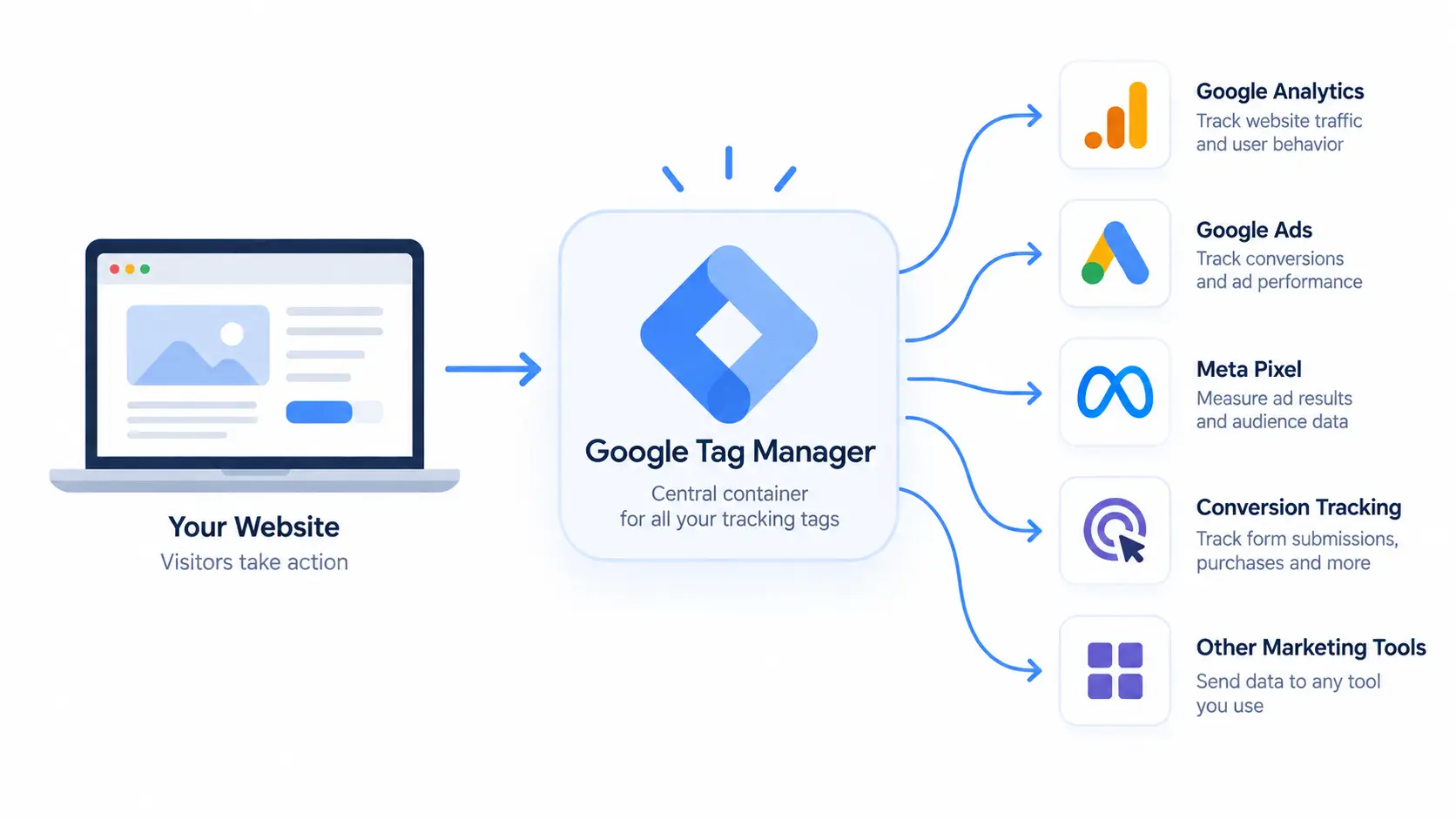
Google Tag Manager is a free tool that lets you add, edit, and manage tracking codes on your website without touching your site’s source code. Instead of asking a developer to paste a new snippet into your HTML every time you want to track a button click or install a marketing pixel, you make the change directly inside GTM’s web interface and publish it with a click.
Think of GTM as a toolbox. Google Analytics is one tool inside it like a ruler. Google Ads conversion tracking is another like a hammer. GTM doesn’t replace these tools; it’s the container that holds them and controls when each one gets used.
Why Marketers Use GTM Instead of Editing Code Directly
Before GTM, adding or updating a tracking tag meant editing the website’s code directly, then waiting on a developer to deploy it. That’s slow, error-prone, and doesn’t scale once you’re managing five, ten, or twenty different tags. GTM removes that bottleneck. Marketers can launch, pause, or update tracking tags themselves, test changes safely before they go live, and keep a full version history of every edit all without a single line of code touching the actual website.
Google Tag Manager vs. Google Analytics: What’s the Difference?
This is the single most common point of confusion for beginners, so it’s worth clearing up early: GTM and Google Analytics are not competing tools they work together.
Google Tag Manager controls how and when tracking codes fire on your site. Google Analytics (specifically GA4) is one of the tags that GTM can fire. GTM doesn’t collect or report on your data itself; it simply delivers the instructions that tell GA4 (or Google Ads, or any other tool) when to activate.
Do You Need Both GTM and GA4?
Yes, in almost every case. GA4 does the reporting page views, events, conversions, audience insights. GTM is the delivery mechanism that gets GA4’s tracking code onto your site and controls exactly when it should collect data. Using GTM to deploy GA4 also means you can add new tracking (like button clicks or scroll depth) later without editing your site’s code again.
Google Search Console (GSC) helps you understand how your website performs in Google Search, including search queries, clicks, impressions, indexing, and technical issues. While GA4 focuses on what visitors do after reaching your website, Search Console shows how people discover your site through organic search. Using both gives you a more complete view of your website’s search visibility and user behavior.
Core GTM Concepts: Tags, Triggers, and Variables
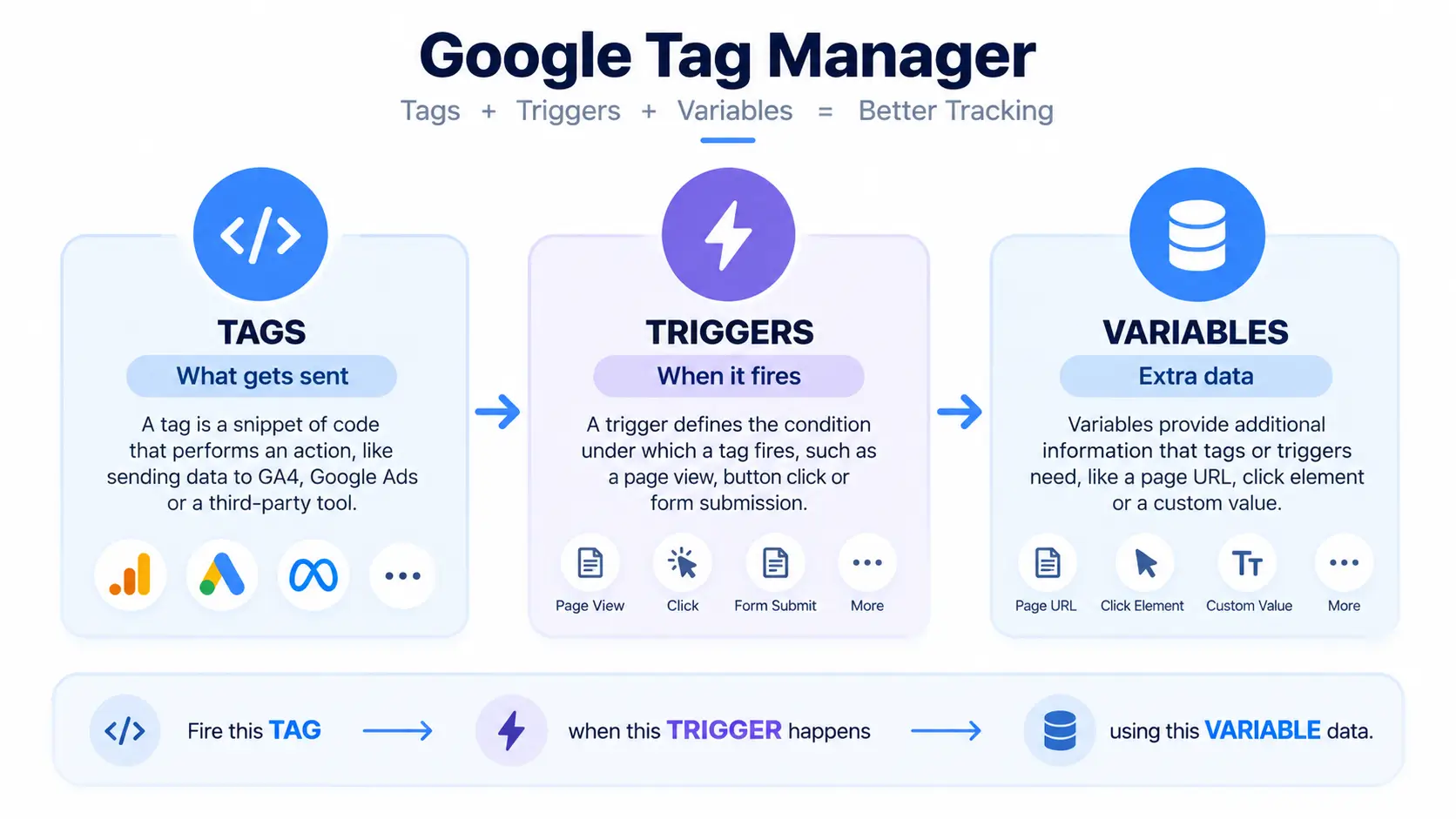
Once the GTM-vs-GA4 distinction clicks, the rest of GTM comes down to three building blocks. Every single thing you’ll do inside GTM is some combination of these three.
Tags – What Gets Sent
A tag is a snippet of code that performs an action most often, sending data to a tool like GA4, Google Ads, or a third-party pixel. When you create a tag, you’re essentially telling GTM: “track this page view,” “log this click,” or “fire this conversion event.”
Triggers – When It Fires
A trigger defines the condition under which a tag fires. Should it activate on every page load? Only on a specific button click? Only after a form is successfully submitted? The trigger is the “when.”
Variables – Extra Data Points
Variables supply additional information that tags or triggers need to do their job things like a page’s URL, a click’s target element, or a custom value pulled from your site’s data layer. Variables make your tags and triggers more precise and reusable instead of hardcoded to one specific page or element.
Together, these three pieces form a simple sentence: “Fire this tag (what) when this trigger happens (when), using this variable data (with what info).” Once you can read GTM setups that way, the interface stops feeling abstract.
How to Set Up Google Tag Manager (Step-by-Step)
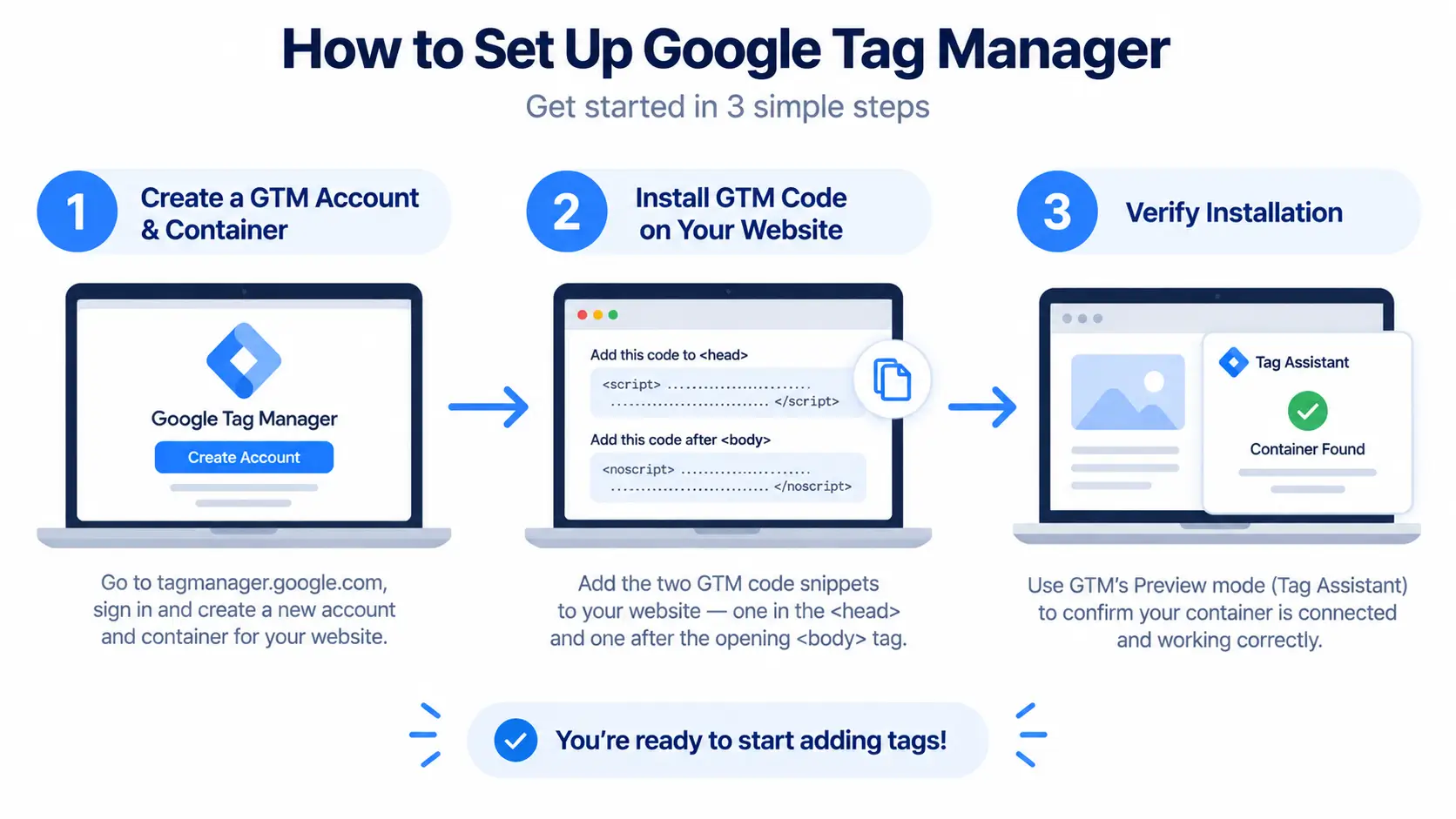
Step 1: Create a GTM Account and Container
Go to tagmanager.google.com and sign in with a Google account. Create a new account (typically your company or site name), then create a container this represents the specific website or app you’re tracking. Choose “Web” as the container type if you’re tracking a website.
Step 2: Install the GTM Code on Your Website
GTM will give you two code snippets: one for the <head> of your site and one for right after the opening <body> tag. Both need to be added to every page of your website. If you’re on WordPress, Shopify, or a similar platform, you can usually paste these into your theme settings or use a dedicated plugin instead of editing code directly.
Step 3: Verify the Installation
Before building any tags, confirm GTM is actually installed correctly. Open your site and use GTM’s Preview mode (covered below) to check that the container is connecting. If it doesn’t connect, it usually means the snippet wasn’t placed correctly or a caching plugin is serving an old version of the page.
Setting Up Your First Tag (GA4 Example)
Adding the GA4 Configuration Tag
Inside your GTM container, go to Tags → New, and choose the “Google Analytics: GA4 Configuration” tag type. Enter your GA4 Measurement ID (found in your GA4 property settings under Data Streams).
Choosing the Right Trigger
For a basic setup, attach the “Initialization – All Pages” trigger so the GA4 tag fires on every page load. This ensures GA4 starts tracking as soon as someone lands on your site.
Avoiding the Double-Tracking Mistake
Here’s a mistake that quietly wrecks more analytics setups than any other: installing the GA4 tracking code directly in your site’s code and deploying a GA4 Configuration tag through GTM on the same property. When both are active, every page view and event gets recorded twice, inflating your traffic numbers and making your reports unreliable. Before deploying GA4 through GTM, check your site’s code for any existing hardcoded gtag.js snippet and remove it. Pick one method ideally GTM, since it’s easier to manage long-term and stick with it.
Testing and Publishing Your Tags
Using Preview and Debug Mode
Never publish a new tag without testing it first. GTM’s Preview mode lets you browse your site in a special debug window that shows exactly which tags fired, on which page, and why before any of it goes live. This is also where GA4’s DebugView becomes useful, letting you confirm events are actually reaching your analytics property with the right data.
Publishing Changes Live
Testing a tag in Preview mode doesn’t make it live. You have to click the blue “Submit” button in the top-right corner of the GTM workspace, name your version, and publish it. Skipping this step is a common beginner mistake everything looks correct in testing, but nothing actually changes on the live site until it’s submitted.
Common Google Tag Manager Mistakes to Avoid
Duplicate tracking. As covered above, running a hardcoded GA4 snippet alongside a GTM-deployed GA4 tag is the most damaging and frequent setup error it silently corrupts your data without any obvious warning sign.
Messy naming conventions. As your container grows, generic names like “Tag 1” or “Tag 2” become impossible to manage. Use a consistent format for example, “GA4 – Button Click – Contact Form” so anyone on your team can understand a tag’s purpose at a glance.
Publishing without testing. Pushing changes straight to your live environment without checking Preview mode first is how broken tracking and missing conversions happen. Always test before you submit.
Is Google Tag Manager Right for You?
If you’re only ever going to run one native integration say, GA4 on a platform with a built-in GA4 connector you may not strictly need GTM. But if you run ads on more than one platform, plan to add tracking beyond basic analytics, or want the flexibility to manage tags without developer help, GTM is worth the initial setup effort. It’s free, it’s the industry standard, and once installed, it’s rarely something you outgrow.
FAQ
What is Google Tag Manager used for?
Google Tag Manager is used to add, edit, and manage tracking codes like Google Analytics, Google Ads, or Facebook Pixel on a website without editing the site’s source code. It centralizes all tracking tags in one dashboard, letting marketers deploy and update tracking independently of developers.
Is Google Tag Manager free?
Yes, Google Tag Manager is free for standard web and app tagging. Google also offers Server-Side Tagging, which moves tag processing to the cloud; this can incur hosting costs, but the GTM tool itself carries no licensing fee.
Do I need to know how to code to use GTM?
No. Basic GTM setup installing common tags like GA4 or Google Ads, requires no coding. Pre-built tag templates handle most standard use cases. Coding knowledge becomes helpful only for custom or advanced tracking scenarios.
What’s the difference between Google Tag Manager and Google Analytics?
Google Tag Manager and Google Analytics serve different jobs and work together, not as alternatives. GTM controls when and how tracking codes fire on your site; Google Analytics is one of the tools GTM can fire to collect and report on that data.
How do I know if my GTM tags are actually working?
Use GTM’s built-in Preview and Debug mode before publishing any tag. It shows exactly which tags fired on a given page, in what order, and why, letting you catch errors before they affect live tracking data.
Can I use Google Tag Manager with WordPress or Shopify?
Yes. Most website builders and CMS platforms, including WordPress and Shopify, support GTM either through a dedicated plugin/app or by manually pasting the container snippet into the site’s header and body code.



Pingback: Google Analytics (GA4) : A Step-by-Step Beginner Guide