If you’ve opened Google Analytics 4 for the first time and felt a little lost, you’re not alone. GA4 looks and behaves very differently from the old Universal Analytics, and that shift trips up even experienced marketers. The good news: once you understand a handful of core concepts, GA4 becomes one of the most powerful free tools you can use to understand your website’s visitors.
This GA4 tutorial for beginners walks you through everything from setup to your first look at real reports, explained in plain language no jargon, no assumed experience.
What Is Google Analytics (GA4)?
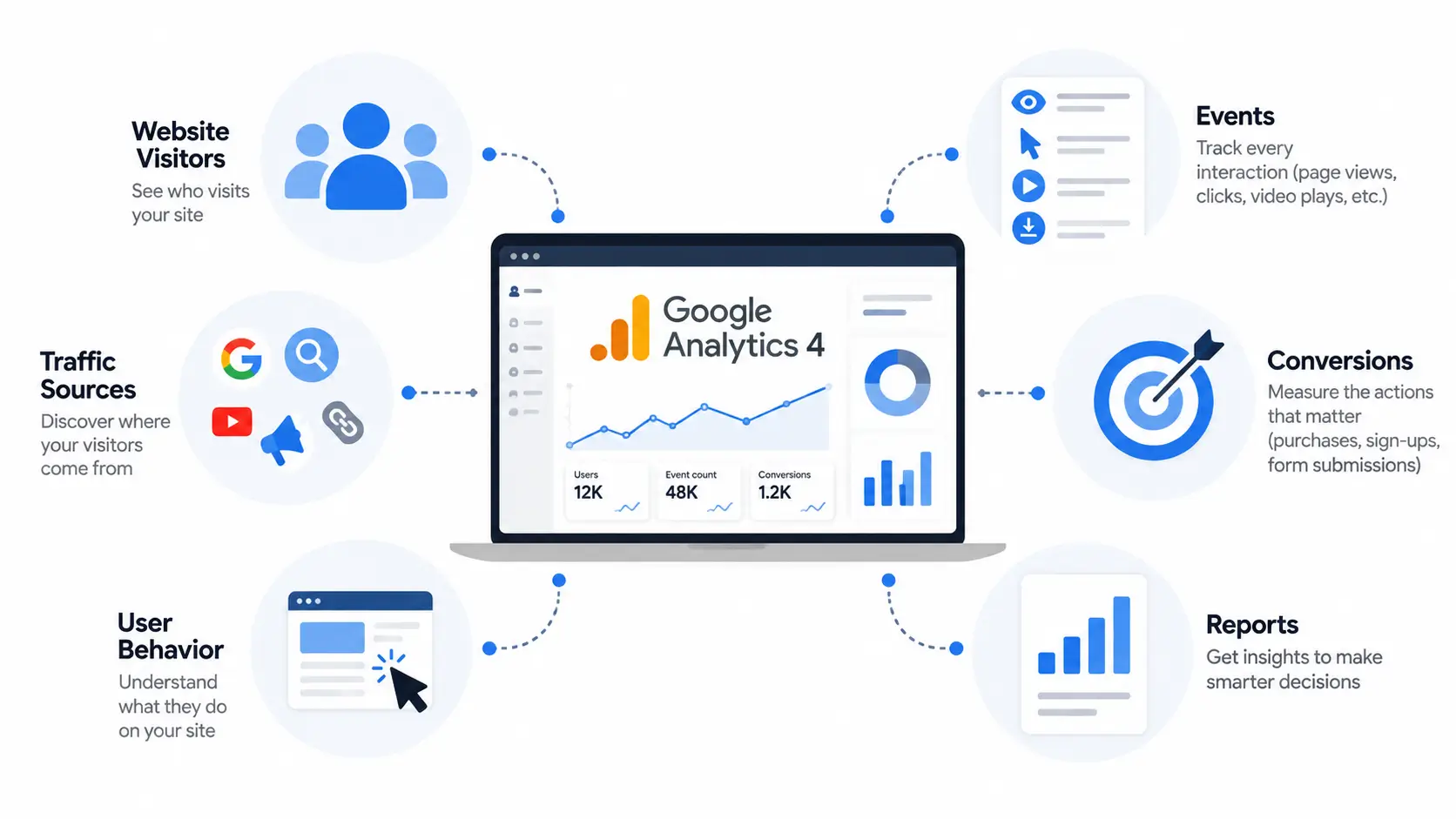
Google Analytics 4 is Google’s current website and app analytics platform. It’s the tool that tells you who’s visiting your site, where they came from, what they did once they arrived, and whether they completed the actions that matter to your business things like purchases, sign-ups, or form submissions.
GA4 isn’t an update to the old Google Analytics it’s a ground-up rebuild. It replaced Universal Analytics (UA), which is why nearly every business and marketer has had to relearn how analytics works over the past couple of years.
GA4 vs. Universal Analytics: What Changed
The biggest change is how GA4 measures activity. Universal Analytics was built around pageviews and sessions it counted visits to pages and grouped them into sessions. GA4 is built around events every interaction, from a pageview to a button click to a video play, is logged as an event. This gives you a far more flexible and detailed picture of user behavior, but it also means the interface, terminology, and reports all work differently than what longtime UA users were used to.
GA4 also unifies web and app data into a single property, leans more heavily on machine learning to fill gaps in the data, and was designed with privacy regulations in mind it relies less on cookies and collects less identifiable data by default.
Why Every Website Owner Needs GA4 in 2026
This isn’t optional anymore. Universal Analytics officially stopped processing new data on July 1, 2024, meaning any site still relying on it has had no active tracking for well over a year. If you want to know how people find your site, what keeps them engaged, and what convinces them to convert, GA4 is now the only standard version of Google Analytics available. Setting it up correctly today is the foundation for every marketing and content decision you’ll make going forward.
Before You Start: What You’ll Need
Setup takes about 15 minutes. Before you begin, make sure you have:
- A Google account (a free Gmail account works fine)
- Access to your website’s code, or admin access to your CMS (WordPress, Shopify, Wix, etc.)
- Admin or owner-level permissions if you’re setting this up for someone else’s business
That’s it; no technical background required.
How to Set Up GA4 Step by Step
Follow these five steps in order. Each one builds on the last.
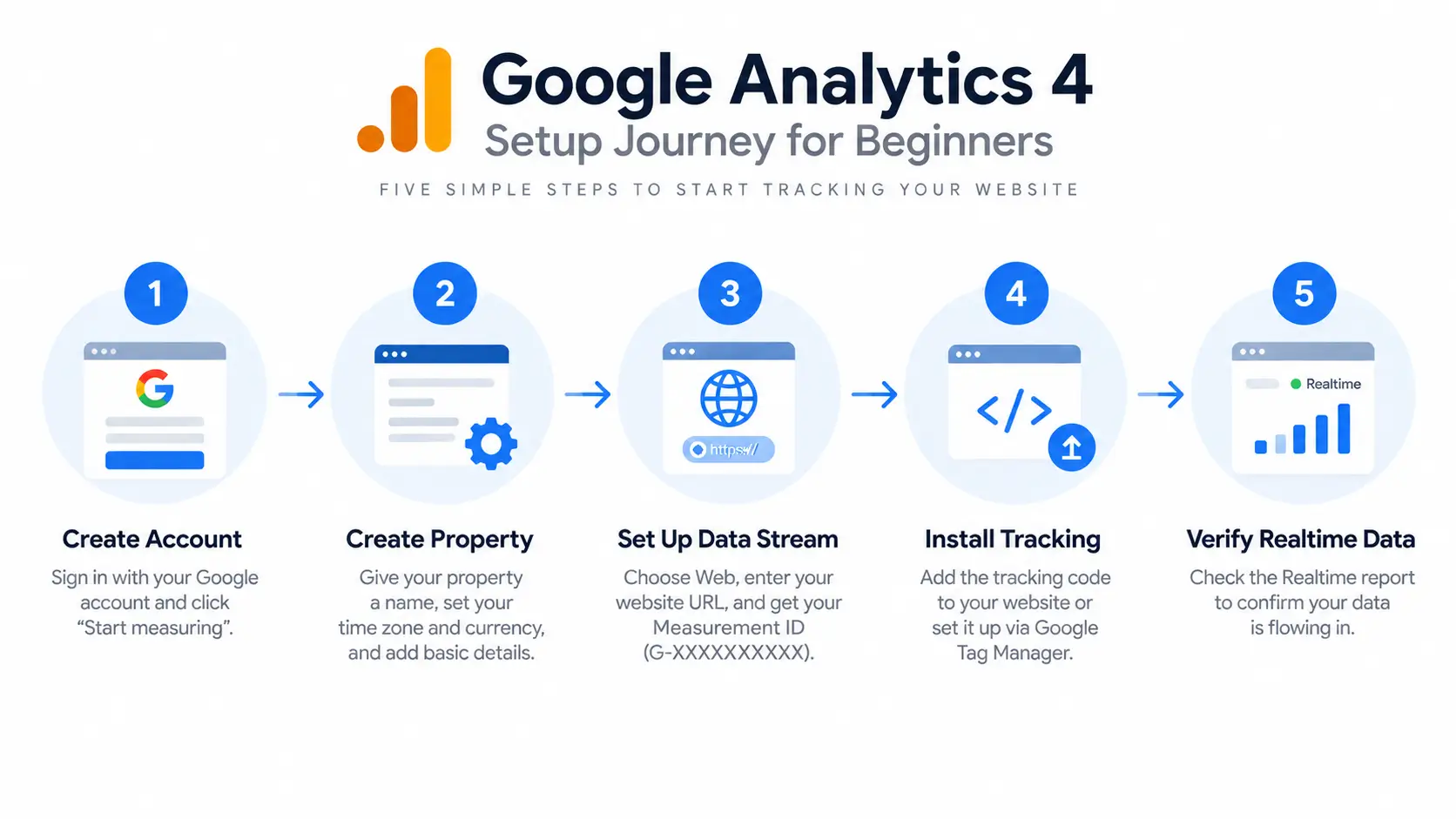
Step 1 – Create a Google Analytics Account
Go to analytics.google.com and sign in with your Google account. If this is your first time using Analytics, click Start measuring. You’ll be asked to name your account this is typically your company or website name. This “account” is just a container; the actual tracking setup happens at the property level in the next step.
Step 2 – Create a GA4 Property
Inside your new account, click Create Property. Give it a name (usually your website’s name), select your time zone and currency, and provide some basic business details when prompted. As of GA4’s current setup flow, every new property you create is automatically a GA4 property you no longer have to choose between GA4 and Universal Analytics.
Step 3 – Set Up a Data Stream
A data stream tells GA4 where to collect data from your website, an iOS app, or an Android app. For most beginners, choose Web, enter your site’s URL, and give the stream a name. GA4 will generate a Measurement ID (it looks like G-XXXXXXXXXX). This ID is what connects your website to your GA4 property, so keep this tab open or copy it somewhere safe.
Step 4 – Install the GA4 Tracking Code (or via Google Tag Manager)
You have two main options here:
Option A: Direct installation. GA4 will give you a snippet of JavaScript (the Global Site Tag) to paste into the <head> section of every page on your site. If you’re using WordPress, Shopify, Wix, or Squarespace, you likely don’t need to touch code at all just paste your Measurement ID into the analytics field in your platform’s settings.
Option B: Google Tag Manager (GTM). If you’re already using GTM, or plan to track custom events later, create a new GA4 Configuration tag in your GTM container, enter your Measurement ID, and publish the container. GTM isn’t required for basic tracking, but it gives you far more flexibility down the road without needing a developer.
Step 5 – Verify Your Data Is Flowing In
Once your tracking code is live, go back to GA4 and open the Realtime report (found in the left-hand menu). Visit your own website in another browser tab. Within a few seconds, you should see yourself show up as an active user. If you do, your setup is working correctly.
Understanding GA4’s Core Concepts
Before diving into the reports, it’s worth pausing on a few concepts that make GA4 click.
Events, Not Pageviews: How GA4 Tracks Data
This is the single biggest mental shift for beginners coming from the old Google Analytics: stop thinking in pageviews, start thinking in events. In GA4, literally everything is an event even a pageview is technically logged as an event called page_view. Clicks, scrolls, video plays, file downloads, and purchases are all events too. GA4 automatically tracks several of these without any extra setup, which is a big improvement over Universal Analytics, where most of this required manual configuration.
Key Events (Conversions) Explained
Once you know what events GA4 is collecting, you can mark the ones that matter most to your business as key events (GA4’s term for conversions). This might be a completed purchase, a submitted contact form, or a newsletter sign-up. Marking key events tells GA4 and you which actions actually move the needle, separate from all the incidental activity happening on your site.
Users, Sessions, and Engagement Metrics
GA4 still reports on users and sessions, but it adds a metric Universal Analytics never had: engaged sessions sessions that last longer than 10 seconds, include a key event, or involve at least two pageviews. This is a more meaningful signal of genuine interest than a raw session count, and it’s worth getting comfortable with early, since it appears throughout GA4’s reports.
Navigating the GA4 Dashboard and Reports
With data flowing in, here’s a quick orientation so you’re not clicking around aimlessly.
The Home Report Overview
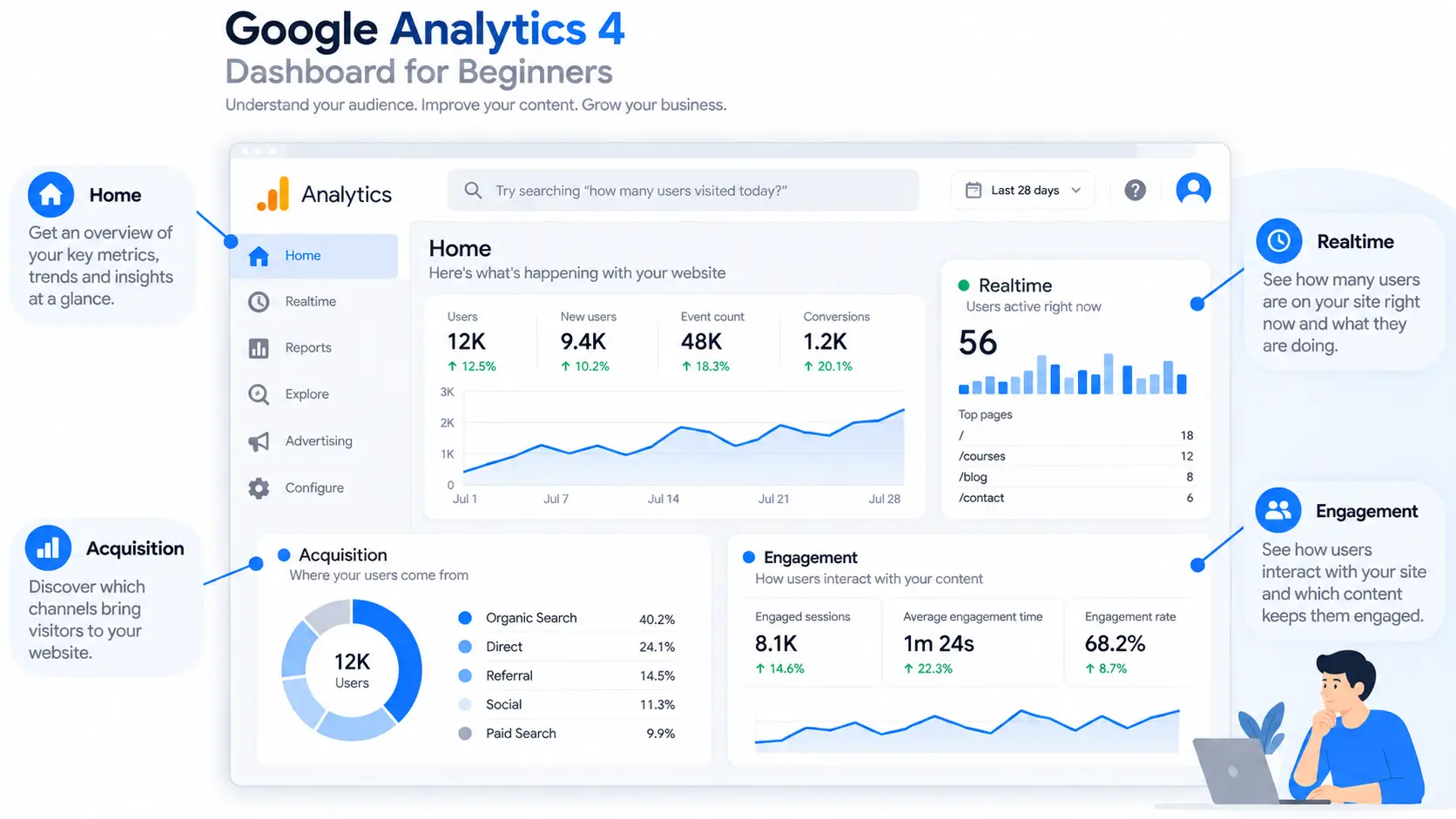
When you log in, the Home screen gives you a snapshot: active users right now, a quick view of your top acquisition channels, and top-performing pages. Think of it as your at-a-glance dashboard, not a place for deep analysis.
Realtime Report: Seeing Live Visitors
The Realtime report shows exactly who’s on your site in the last 30 minutes useful for confirming tracking works, or watching traffic spike after you publish something or run a campaign.
Acquisition Reports: Where Traffic Comes From
Under Reports > Acquisition, you’ll find where your visitors are coming from organic search, paid ads, social media, referrals, or direct traffic. This is essential for understanding which channels are actually worth your time and budget.
Engagement Reports: What Users Do on Your Site
Under Reports > Engagement, you can see which pages and events get the most interaction, how long users stay engaged, and which key events are being completed. This is where you start connecting traffic to actual outcomes.
Common Beginner Mistakes to Avoid in GA4
- Not marking key events. Without this, you’re collecting data but not measuring what actually matters to your business.
- Panicking over data delays. Standard reports typically take 24–48 hours to fully populate a quiet dashboard the first day doesn’t mean tracking is broken.
- Ignoring “thresholding” notices. On lower-traffic properties, GA4 sometimes withholds or aggregates certain data to protect user privacy. This is expected behavior, not an error.
- Setting up multiple data streams incorrectly. If you have both a website and an app, make sure each has its own stream so data doesn’t get mixed together.
- Never checking the Realtime report after setup. Skipping this step means you might not catch a broken tracking code until you’ve already lost days of data.
GA4 Tips to Get More Value From Your Data
Once you’re comfortable with the basics, a few features are worth exploring next: the Explore section lets you build custom reports and funnels beyond the standard templates. Linking your GA4 property to Google Search Console brings organic keyword data directly into your reports. And if you run paid campaigns, linking to Google Ads lets you track conversions all the way from click to purchase. None of these are necessary on day one, but they’re natural next steps as your confidence grows.
Frequently Asked Questions
Is GA4 hard to learn for beginners?
GA4 has a steeper learning curve than Universal Analytics because it uses event-based tracking instead of simple pageviews. However, once you understand the core concepts events, key events, and engagement metrics the interface becomes intuitive. Most beginners feel comfortable within a few hours of hands-on use.
What is the difference between Google Analytics and Universal Analytics?
Universal Analytics tracked sessions and pageviews using a session-based model, while GA4 tracks individual events (clicks, scrolls, purchases) using an event-based model. GA4 also unifies web and app data, offers AI-powered insights, and is privacy-centric, since Universal Analytics was officially sunset by Google.
Do I need Google Tag Manager to use GA4?
No, Google Tag Manager isn’t required. You can install GA4 directly by pasting the tracking code (gtag.js) into your site’s HTML or using a platform plugin. However, GTM gives you more flexibility for tracking custom events without editing code.
How long does GA4 data take to show up?
Realtime data appears within seconds of installation, confirming your tracking works. Standard reports, however, typically take 24–48 hours to fully populate as GA4 processes and aggregates data before displaying it in the main dashboard views.
Is Google Analytics free to use?
Yes, GA4 is free for most websites and businesses. Google also offers GA4 360, a paid enterprise tier with higher data limits, advanced support, and additional features, but the free version covers everything a typical beginner or small business needs.
Can I use Google Analytics GA4 without any coding knowledge?
Yes. Most website builders and CMS platforms (WordPress, Shopify, Wix) offer plugins or built-in fields where you simply paste your GA4 Measurement ID. No code is required for basic setup, though custom event tracking may need minimal tag configuration.



Pingback: PHP2Shell Vulnerability: Protect Your WordPress Site (2026)