
Google added a new option to Search Console that changes what you can learn about your visitors. Multimodal search reporting shows how your pages appear when people search with a photo, screenshot, or image instead of typed words. If you have ever pointed your phone camera at a product and tapped a search button, you have run a multimodal search.
This beginner’s guide explains what multimodal search in Search Console is, where to find it, how to read the numbers, and what it can’t tell you yet. By the end, you will have a simple routine for tracking this new source of discovery.
What Is Multimodal Search Reporting?
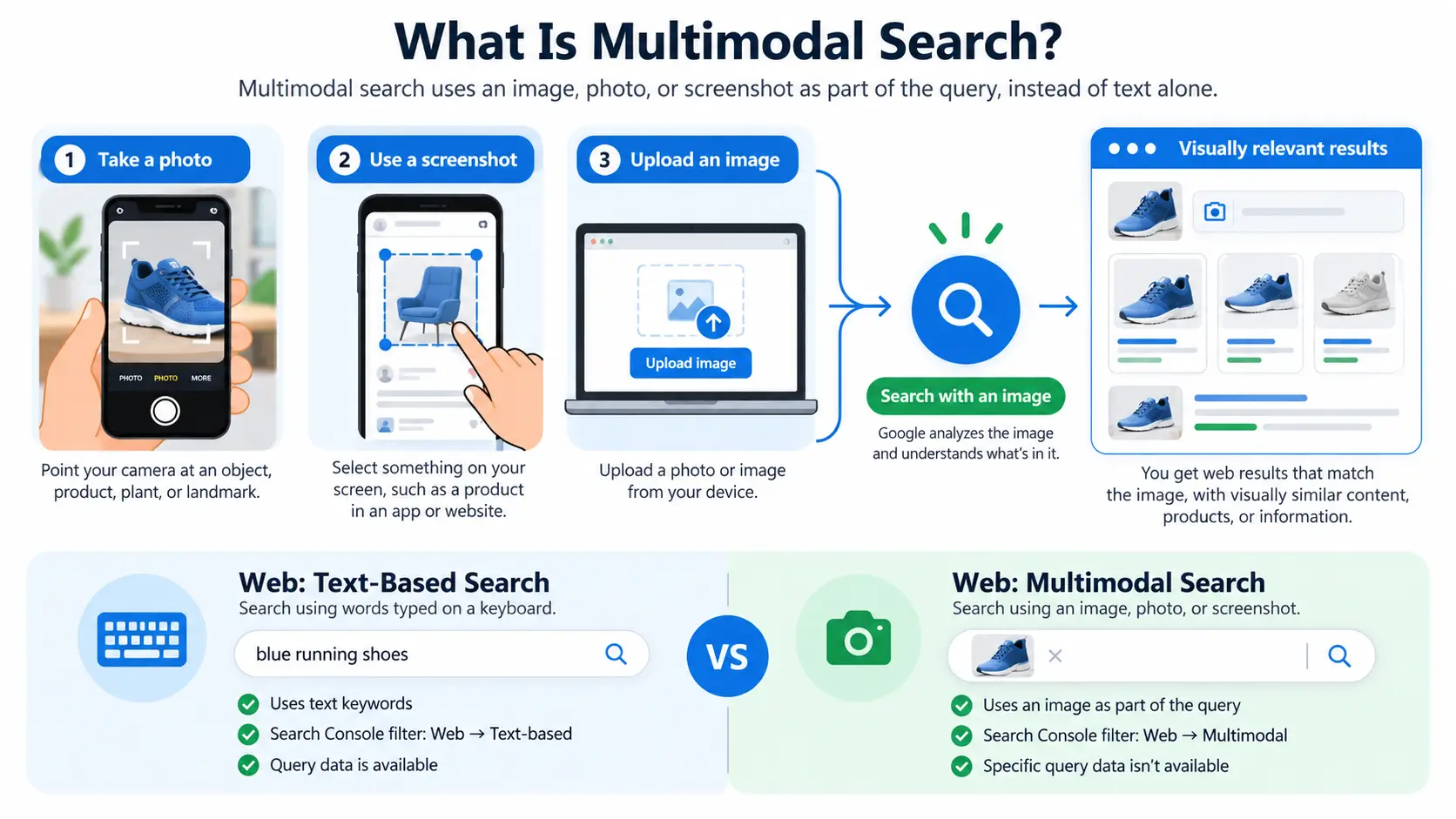
A “modality” is simply a type of input. Typing words is one modality; using an image is another. A multimodal search uses an image as part of the query rather than relying on text alone. Search Console’s new reporting tracks the web results people reach this way.
Google’s help documentation describes the new Web: multimodal type as covering web search results where an image was used as part of the search. Notice that the label describes how the person searched, not how your result looks on the page.
What Counts as a Multimodal Search?
Google says the new type covers several everyday behaviors:
- Google Lens, such as photographing an object, plant, or product
- Circle to Search on Android, where someone circles something on their screen
- Image uploads to Google Search
- Chrome’s right-click “Search this image” option
In practice, this includes a shopper who screenshots a jacket from social media, a traveler who photographs a landmark, or a student who snaps a photo of a diagram. In every case, an image starts the search.
Web Text-Based vs. Web Multimodal
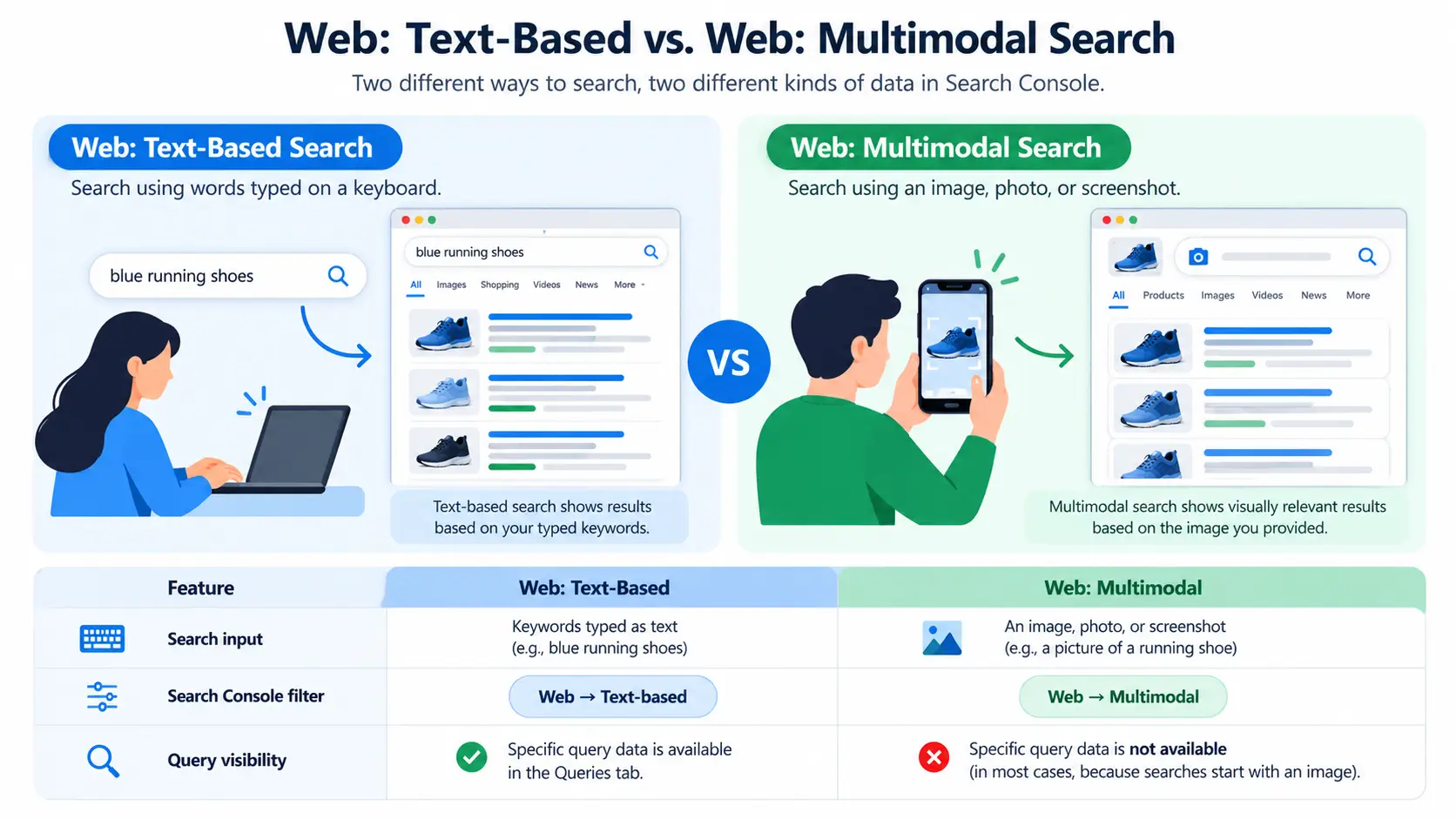
Previously, “Web” was a single bucket in Search Console’s Search type filter. Google has now split it in two. Web: text-based covers searches typed in as words. Web: multimodal covers searches that involve an image, photo, or screenshot.
The other search types, such as Image, Video, and News, remain separate. Only Web has been subdivided.
How to Find the Multimodal Filter in Search Console
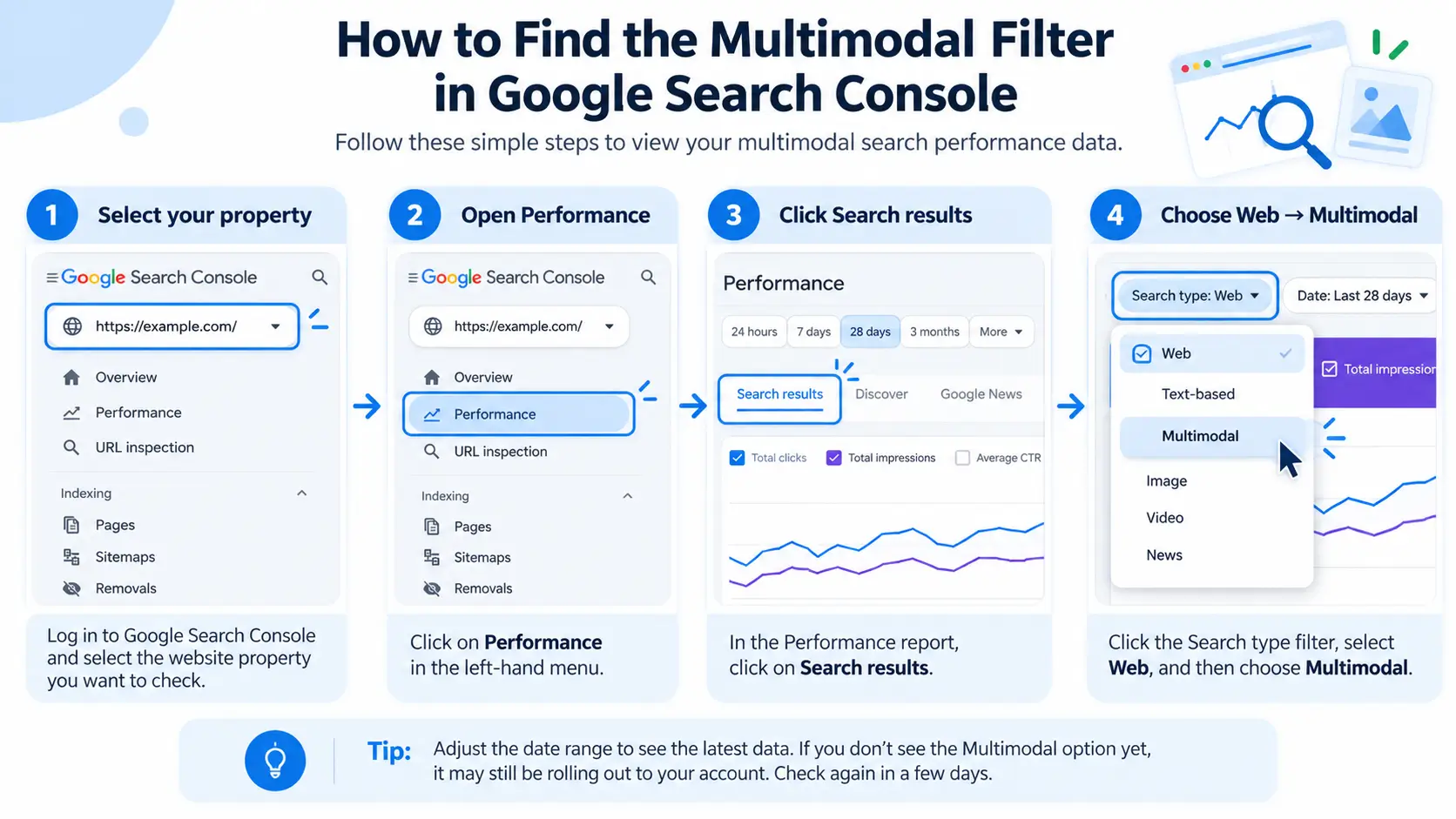
The filter lives inside the Performance report you may already use. Here is the quickest route:
- Log in to Google Search Console and select your property.
- Click Performance, then Search results.
- Click the Search type filter at the top of the report.
- Choose Web, then select Multimodal (instead of Text-based).
- Adjust the date range and review the results.
Where Is the Multimodal Filter?
It sits under the Web option within the Search type menu. Google also surfaces multimodal reporting in the separate report for Generative AI features, so you can find it in both places.
What If You Don’t See It Yet?
Google began a global rollout on September 24, so availability may vary by account. If the option hasn’t appeared, check again in a few days. Also confirm you are in the Search results report, not another report, and that you have selected the Web search type first.
How to Read Your Multimodal Performance Data
Once you select the Multimodal filter, the report works much like the Performance reports you already know. The standard Search results view offers four core metrics:
- Clicks: how often people clicked through to your site
- Impressions: how often your pages appeared in results
- CTR: clicks divided by impressions
- Average position: where your results typically ranked
Switch to the Pages tab to see which URLs appear when people search with images. For many sites, this may reveal surprises, such as a product page or tutorial that attracts visual searchers far more than text searchers.
Why Can’t I See Queries for Multimodal Searches?
This is the biggest limitation to understand. Multimodal searches mostly begin with an image, not words, so there is no text query to record. Google’s documentation notes that specific query data isn’t available for this traffic. You will see which pages appeared and how often, but not what the person searched, and the image itself stays hidden.
That means the Queries tab won’t help here. Focus on pages, countries, devices, and dates instead.
Using the Compare Tab to Benchmark Text vs. Multimodal
The Compare feature lets you put text-based and multimodal performance side by side. Use it to answer simple questions: Which pages gain visibility through image-led searches? Do those pages differ from your top text-search performers? Is multimodal a tiny slice of your impressions, or a growing one?
Multimodal Reporting in the Generative AI Features Report
Search Console added a dedicated report for Generative AI features earlier in 2026. The multimodal type now appears there as well, which helps you see how image-led searches connect to AI-powered experiences.
Keep expectations realistic, though. This report is narrower than the standard Performance report and focuses mainly on exposure, meaning how your content appears. Don’t assume it offers the same click and query depth as the Search results report. Check what your own account shows.
Does Search Console Track Google Lens Traffic?
Yes, in a limited way. Lens searches fall under the multimodal type, so you can see which pages appeared and how often. You cannot isolate Lens from other multimodal sources, because Google groups them together.
Does Search Console Show Circle to Search Data?
Yes, with the same caveat. Circle to Search on Android counts as multimodal, but it’s blended with Lens, uploads, and Chrome’s right-click option rather than reported separately.
Current Limitations to Know About
Because the feature is new, treat it as an early signal rather than a complete picture. Keep these limits in mind:
- No query data: you can’t see the words (or image) behind each search.
- No source breakdown: Lens, Circle to Search, uploads, and Chrome are combined.
- Early, short history: only data since launch is available, so trends take time to appear.
- Open questions: it isn’t yet clear to everyone whether the top-level Web view now combines text-based and multimodal data, so avoid comparing old and new totals without checking.
Is Multimodal Data Available in the Search Console API?
Early reports suggest it is not. At launch, the Search Console API‘s documented search types did not include multimodal, and the data didn’t appear in the BigQuery bulk export. For now, the Search Console interface is the place to look. Check Google’s documentation for updates, since this may change.
Exporting the Data
Google says you can download multimodal data using the report’s Export button and analyze it in spreadsheets or other tools. Because there are no queries, exports will contain page-level and other dimension data only.
What Beginners Should Do With This Data
The most useful approach right now is simple: monitor, don’t overreact. The data is too young for big decisions, but it’s perfect for building a baseline.
Start With a Baseline: The Image-Led Discovery Routine
- Check the filter exists in your Performance report.
- Record the last 28 days of impressions and clicks for your top 10 multimodal pages.
- Compare against text-based performance using the Compare tab.
- Revisit monthly and note which pages rise, fall, or appear for the first time.
A small spreadsheet with columns for page, impressions, clicks, and month is enough. Over a few months, you will see patterns that no guesswork could reveal.
How Do I Optimize for Visual Searches?
Google hasn’t published ranking advice specific to this report, so treat these as general best practices for pages that visual searchers may land on:
- Use sharp, original images that clearly show the product, place, or subject.
- Write descriptive alt text and file names rather than generic ones.
- Support images with clear page content, including headings, captions, and detailed text.
- Add structured data where relevant, such as Product markup on product pages.
- Make pages mobile-friendly, since many visual searches happen on phones.
Pages most likely to benefit include product pages, how-to guides, recipes, travel content, and anything with strong original photography.
Frequently Asked Questions
What is multimodal search reporting in Search Console?
It’s a Performance report feature showing how your pages appear when people search using an image, photo, or screenshot instead of typed text. Google introduced it on September 24, 2026, as a new Web search type alongside text-based results.
Where do I find the multimodal filter in Search Console?
Open Performance, then Search results. Click the Search type filter, choose Web, and select Multimodal instead of Text-based. The same option appears in the Generative AI features report. Rollout is gradual, so if you don’t see it yet, check back in a few days.
Why can’t I see queries for multimodal searches?
Multimodal searches mostly start with an image rather than typed words, so there’s no text query to record. Search Console shows which pages appeared and how often, but the query dimension is unavailable for this traffic, and the original image stays hidden.
Which search tools count as multimodal?
Google says it covers Google Lens, Circle to Search on Android, image uploads to Google Search, and Chrome’s right-click “Search this image” option. Essentially, any web search where an image, photo, or screenshot is part of the query counts as multimodal.
Can I access multimodal data through the Search Console API?
At launch, early reports say it’s available only in the Search Console interface. The API’s search types don’t list it, and it isn’t in the BigQuery bulk export yet. You can download data with the report’s Export button, but check Google’s documentation for updates.
What should I do with multimodal data?
Treat it as a baseline to monitor, not a to-do list. Use the Compare tab to view text-based and multimodal performance side by side, note which pages get impressions and clicks, and track changes over time as more history builds up.
Conclusion
Multimodal search reporting gives site owners a first look at a fast-growing behavior: searching with a camera or screenshot instead of a keyboard. You can see which pages appear and how often, but not the queries behind them, so treat it as a monitoring tool rather than a source of instructions.
Your next step is simple: open Search Console today, switch to Web: multimodal, and record your baseline. Then pair it with our guide to Search Console basics to get more from every report.